
Installing PostgreSQL In Docker
One of the most popular ways to run PostgreSQL is inside Docker containers. Docker makes it simple to spin up, isolate, and tear down database environments without cluttering your local system. You’ll never hear “Well, it worked on my machine!” Let’s walk through getting PostgreSQL running in Docker, step by step.
Installing Docker
For Windows and Mac navigate to https://www.docker.com/get-started/ to download and install Docker Desktop.
For Linux
sudo apt update
sudo apt install docker.io
sudo systemctl enable --now docker
Let's verify Docker is installed correctly by running:
docker --version
Running Docker
Let's create a container with the PostgreSQL version 18 image.
docker run --name postgres-container-1 -e POSTGRES_PASSWORD=mysecretpassword -d -p 5432:5432 -v $(pwd)/pgdata:/var/lib/postgresql/18/main postgres:18
| Option | Description |
|---|---|
| --name postgres-container-1 | Our container name |
| POSTGRES_PASSWORD | Setting the password for the default postgres user |
| -d | Run in background flag |
| -p 5432:5432 | Map Host port to Container Port. 5432 is the default Postgres port number |
| -v $(pwd)/pgdata:/var/lib/postgresql/data |
Maps host folder to Postgres data directory, so database survives container removal NOTE: Postgres 18+ introduced versioned directories. Prior versions will use /var/lib/postgresql/data. |
| postgres:18 | Postgres version to install (i.e. latest, 18, 15, etc.) |
Connecting to PostgreSQL
First we need to connect to the container.
docker exec -it postgres-container-1 bashYou’ll notice the prompt changed. Now we will connect to Postgres.
docker exec -it postgres-container-1 bashNow you can run psql and SQL commands. For example, to list all databases:
\lTo exit psql, type:
\qWe can also connect with a nicer tool such as DBeaver. You can use Docker Desktop or run the following command to get the running container information.
docker psSettings you will need to enter based on what we did above.
| Server | localhost |
| Port | 5432 |
| Database | postgres |
| Username | postgres |
| Password | mysecretpassword |
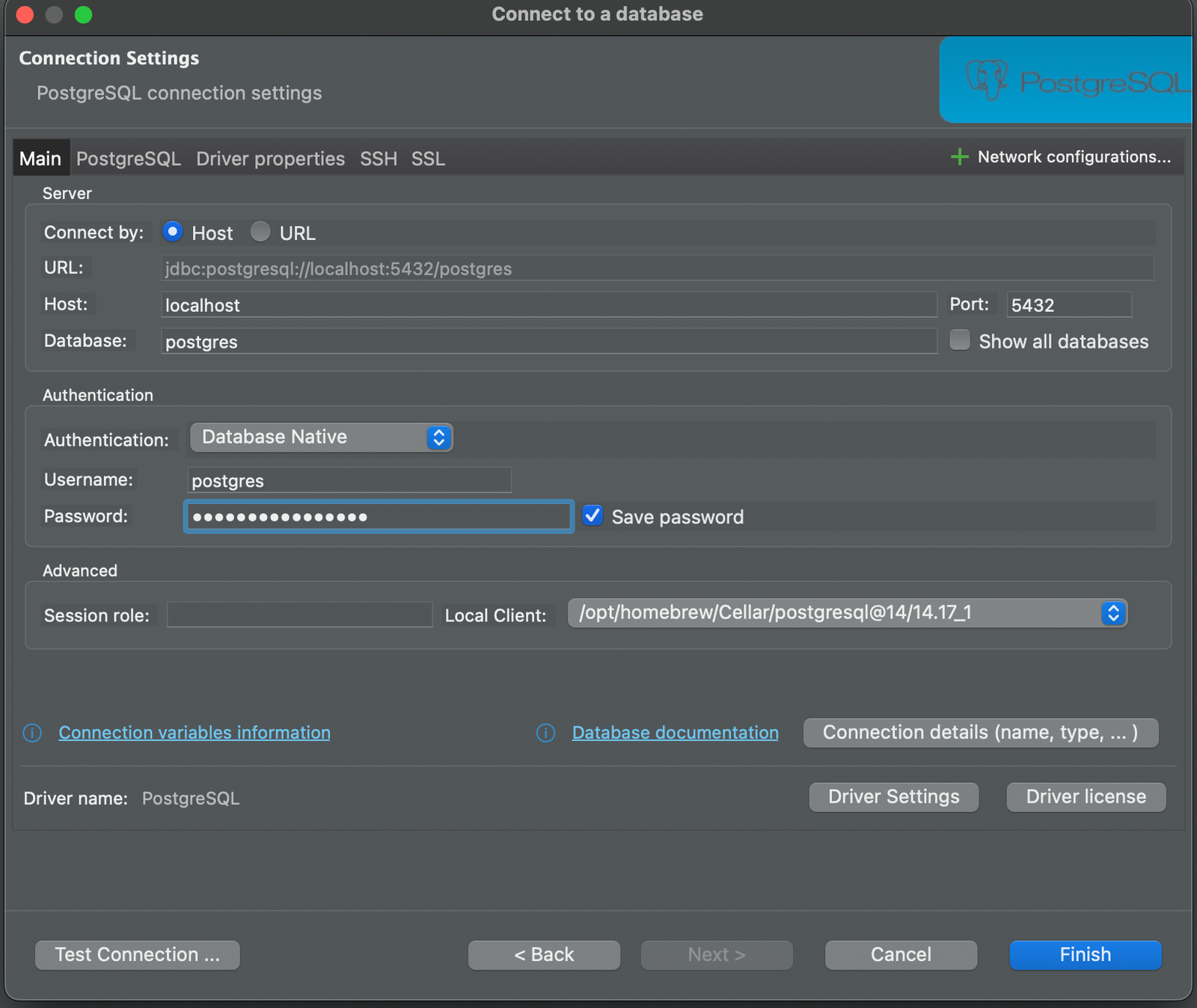
And that’s it! You now have PostgreSQL running in Docker. You can create databases, run queries, and develop your applications with ease.
Moving Files Between Docker and Host
There will be times when you want to move files between host and Docker container.
To copy a file from your host to the Docker container run the following command:
docker cp /path/on/host/file.txt postgres-container-1:/tmp/file.txtNow let's copy a file from the Docker container to the host. HINT its actually the same command just reversed parameters.
docker cp postgres-container-1:/tmp/file.txt /path/on/host/file.txtConclusion
Running PostgreSQL in Docker is a convenient way to manage your database environment. With just a few commands, you can have a fully functional PostgreSQL instance up and running, isolated from your host system. This setup is perfect for development, testing, and learning purposes. Here's a quick cheat sheet of the commands you'll use most. Happy coding!
| Command | Description |
|---|---|
| docker start postgres-container-1 | Start Container |
| docker stop postgres-container-1 | Stop Container |
| docker restart postgres-container-1 | Restart Container |
| docker ps -a | List All Containers |
| docker exec -it postgres-container-1 bash | Connect To Container |
| docker cp /path/on/host/file.txt postgres-container-1:/tmp/file.txt | Copy File Host To Container |
| docker cp postgres-container-1:/tmp/file.txt /path/on/host/file.txt | Copy File Container To Host |
| docker rm postgres-container-1 | Remove Container (Only If Stopped) |
| docker rmi postgres:18 | Remove Image |